NewIntroducing Memo AI — Turn voice notes into structured insights→

Can one app really replace your entire productivity stack?
NotePlan did. Try NotePlan free for 7 days to learn how
Can one app really replace your entire productivity stack?
NotePlan did. Try NotePlan free for 7 days to learn how
NotePlan adds support for an MCP server for AI agents (like Claude Desktop, Claude Code, OpenAI Codex, and more), alongside new Space management tools, much faster note opening and embedded table loading, and important stability fixes across the app.
On macOS, you can now connect NotePlan to your favorite AI agent by installing the local MCP server (see here how to install it).
The AI can assist with common tasks such as managing tasks, reading notes, creating summaries, and searching for content. In addition, it can create plugins, themes, and templates—and even run and debug them for you. This makes it easy to build custom plugins perfectly tailored to your needs.
The MCP server runs entirely locally and does not send any data to external servers. Only the notes the AI agent interacts with are shared with the AI providers (such as Anthropic’s Claude or OpenAI’s Codex).
We’ve published the server online, so you can install it by adding it to your AI tool’s MCP configuration. Open Claude or Codex → Settings → Developer → Add the MCP server.
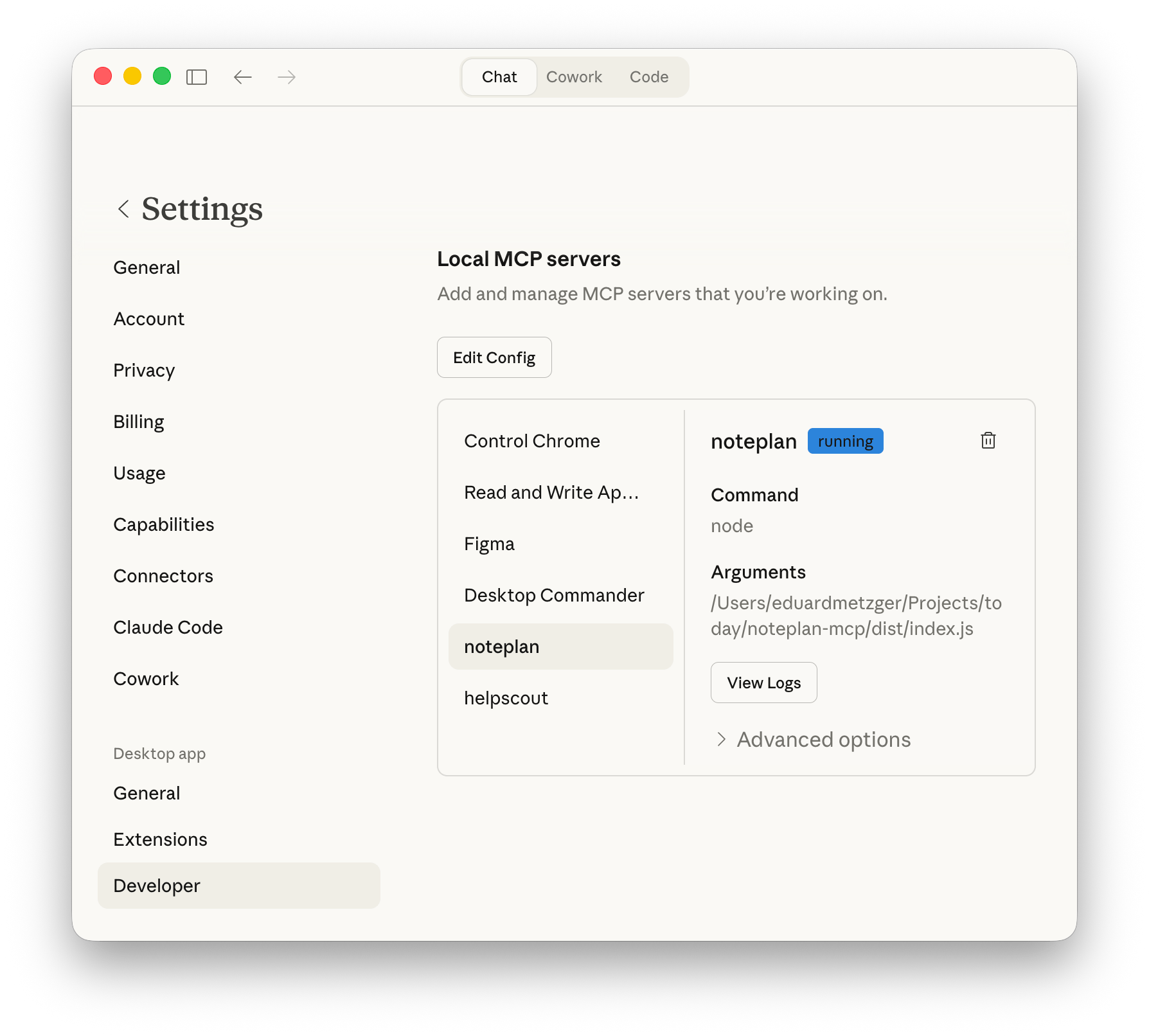
With Claude, you currently need to edit a configuration file and add the following:
{
  "mcpServers": {
    "noteplan": {
      "command": "npx",
      "args": ["-y", "@noteplanco/noteplan-mcp"]
    }
  }
}
Why use an MCP server instead of pointing Claude Code or Codex directly at NotePlan’s files? The MCP server guides the AI and exposes tools tailored to NotePlan for searching, reading, and interpreting notes, including their Markdown and Properties, and for editing them with precision. This reduces token usage and helps minimize AI errors.
It’s also safer: the MCP tools don’t allow the AI to permanently delete notes (only move them to the trash), and changes must first be performed as a dry run before being applied. This makes the AI much more cautious when modifying your notes.
Guides:
MCP Tools:
Compatible AI Agents:
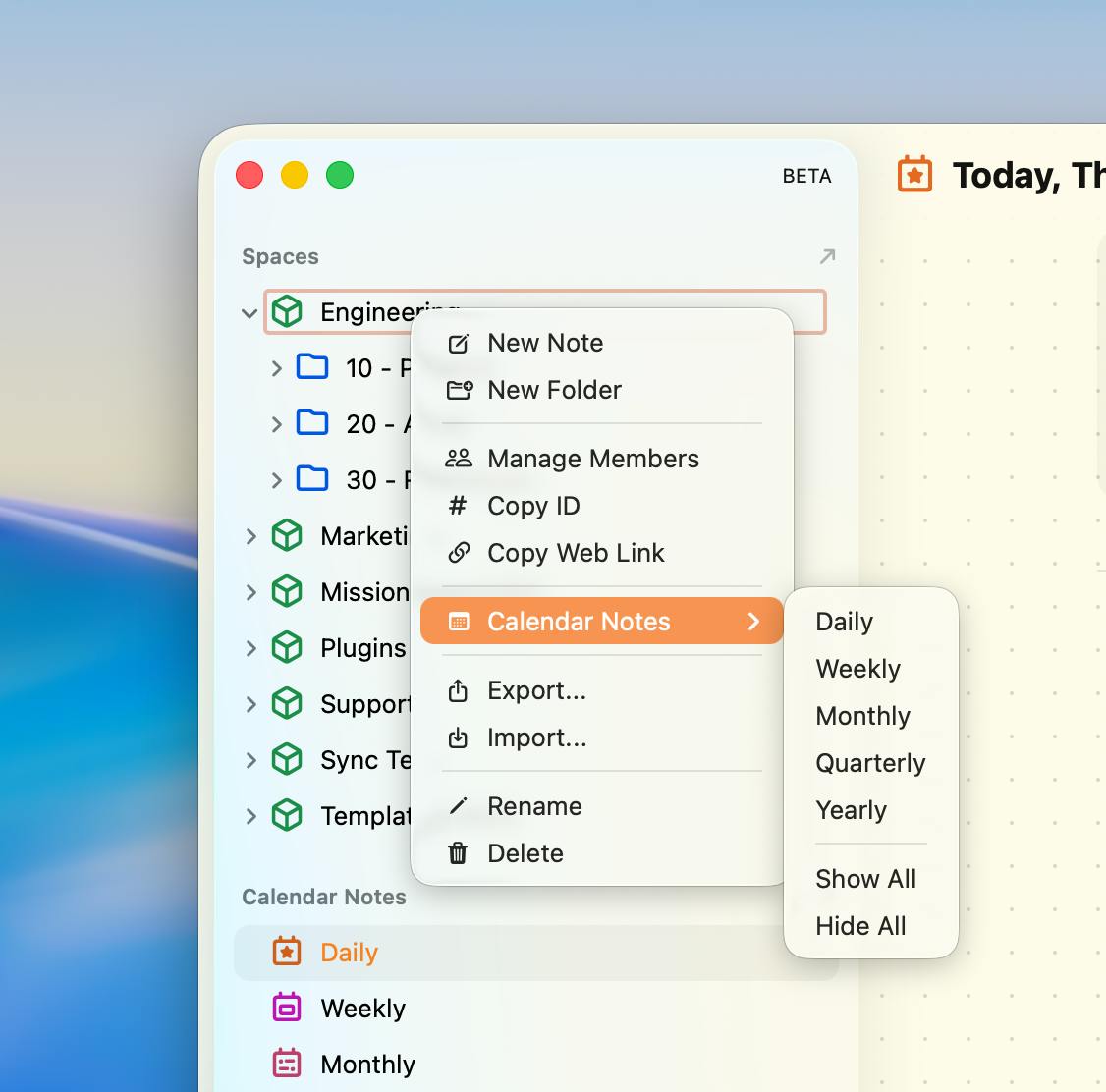
We’ve added new tools to help you manage your Spaces. You can now export and import all your notes directly from the Mac and iOS apps as Markdown files. This includes not only regular notes, but also calendar notes (supported for both import and export).
You can now also show or hide calendar notes in Spaces. Some Spaces may not need calendar notes and they can become unnecessary noise. To change this, right-click a Space (or long-press on iOS), select “Calendar Notes,” and choose which calendar notes you want to see.
In addition, Spaces are now backed up by default along with your private notes. Three rolling daily backups are created automatically.
Notes now open much faster. Large notes—especially those containing tables or code blocks—previously slowed down loading. We’ve improved this significantly, making note opening much smoother on both Mac and iOS.
---
Enjoying NotePlan? A quick review on the App Store helps support independent development.