Footer

NotePlanNotePlan

NotePlan lets you combine your tasks, your notes, and your calendar in a single place. All linked and synced seamlessly between your devices. Powered by Markdown and stored in plaintext, your data is easy to access, and available online and offline.

XDiscordReddit

Community

  • Discord
  • Feedback
  • Reddit
  • Plugins
  • NotePlan on Tool Finder
  • Custom Themes

NotePlan

  • Web Login
  • Help Center
  • Contact
  • Blog
  • Privacy Policy
  • Terms of Use
  • Changelog

Use Cases / Compare

  • Getting Things Done
  • P.A.R.A.
  • Zettelkasten
  • Bullet Journal
  • NotePlan vs Craft
  • NotePlan vs Agenda
  • NotePlan vs Things

© 2026 NotePlan LLC. All rights reserved.

NewIntroducing Memo AI — Turn voice notes into structured insights→
NotePlanNotePlanNotePlan
PricingSpacesHelp Center
Back to other posts
Download
App Store
Beta
TestFlight

Can one app really replace your entire productivity stack?

NotePlan did. Try NotePlan free for 7 days to learn how

[Currently in TestFlight Beta]

NotePlan 3.21.2 is all about one thing: a proper, two-way integration with Apple Reminders. Alongside it come Space backups, calendar boards grouped by time frame, smarter filters, and the usual round of fixes and refinements.

Apple Reminders Integration (@remind)

Notes are great for planning, but sometimes a task needs a real notification. Now you can push individual tasks to Apple Reminders. Type @remind anywhere in a task and NotePlan creates a matching reminder, shown as a small pill right in the line.

You can also click on the arrow button left of the task, and on "Send to Reminders". On iOS tap on the task options left on the toolbar after selecting the task in the editor.

The tag works entirely from the keyboard. Add a time, a list, or both, right in parentheses:

  • @remind(2pm) — reminds you today at 2pm
  • @remind(2pm, Errands) — same, but saved to your "Errands" list
  • @remind(2026-08-10 9:00) — a specific date and time

From there the sync is two-way: complete, rename, or reschedule the task on either side and the other follows. Priorities carry over too, a task marked with "!!" becomes a high-priority reminder. To make changes, click on the pill on Mac or tap it on iOS. Removing the reminder in NotePlan (or deleting the note) deletes it in Apple Reminders as well.
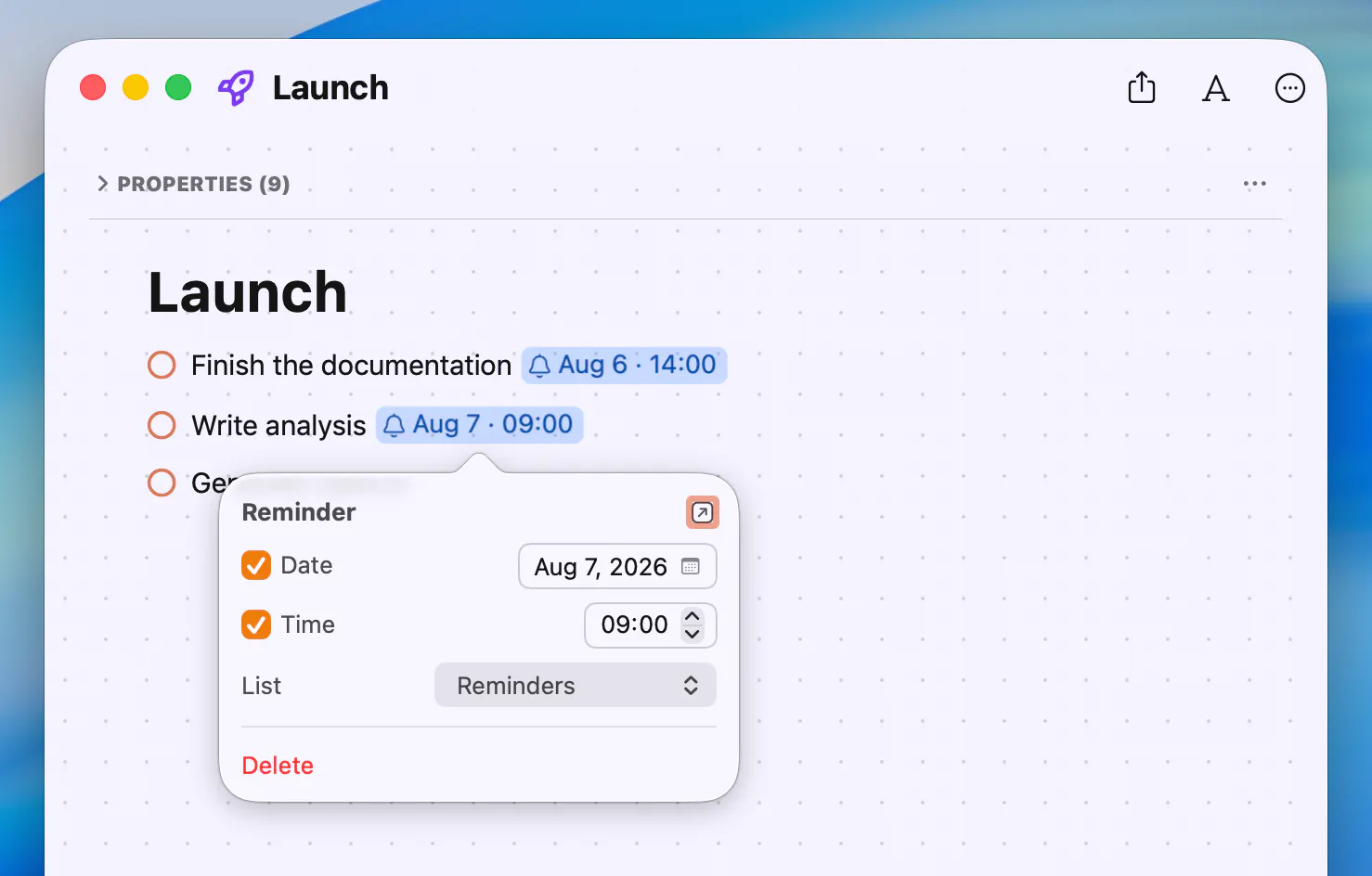
It also works in the other direction: drag an existing reminder from the timeline or a filter into a note, and it lands as a linked task.

A few limitations to be aware of: reminders aren't available in shared spaces, and a task linked to a reminder can't be duplicated or used in synced lines. Recurring reminders are also not yet fully supported.

Tip: You can also import your existing reminders using the free "Reminders Import" community plugin (Preferences → Plugins). On a daily note it imports the reminders due that day, on a project note whole lists. Add the link below to your auto-inserted daily note template, and importing the day's reminders becomes a single click:

[Import Reminders](noteplan://x-callback-url/runPlugin?pluginID=np.reminders&command=Import%20Reminders&arg0=Due%20Today&arg1=top&arg2=silent)

Read the full documentation of the Reminders integration for all the details.

Spaces

Spaces now have backups; created automatically once a day, and on demand whenever you want a snapshot.

  • Right-click a space on Mac or long-press it on iOS (or use the "Spaces" heading in the sidebar) to create and restore backups
  • Date links and date navigation now stay in the current note's space — a date link in a shared space no longer jumps you to your private daily note

Kanban Boards & Folder Views

Calendar notes can now be grouped by time frame: day, week, month, quarter, or year. Click or tap the "Calendar Notes" title in the sidebar to open it, then select a grouping option.
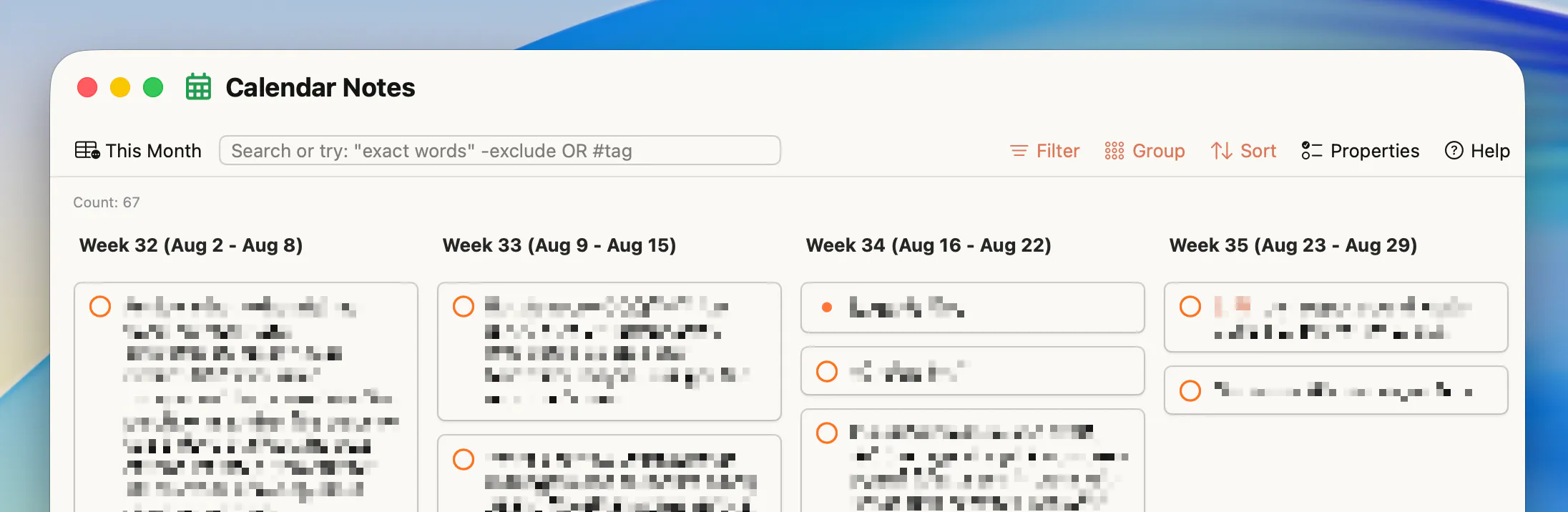
  • Drag tasks between columns to reschedule them. Dragging a scheduled task now updates its date link instead of moving the line out of its note, if it's a scheduled tasks vs a task inside a daily note.
  • New "Reuse Split View" option in the note's context menu stops every click from adding another split (Mac)
  • Dropping a task on a calendar day or week number opens the same compact drop menu as on Mac — link the task, or move it to the top, a heading, or the bottom (iOS)

Filters

Filters picked up a few tricks that make them more flexible:

  • A new {{currentNote}} placeholder for "path contains" builds a filter that always filters content from whatever note you have open. Use this filter in the right sidebar to filter for example for all tasks inside a lengthy project note.
  • The "Other" line-type toggle is now granular on Mac and iOS: choose exactly which non-task lines appear — headings, bullets, quotes, plain text, checklists. Tip: select only headings to get a table of contents of your note in the sidebar
  • A new per-filter option hides the "Add Task" button

Frontmatter

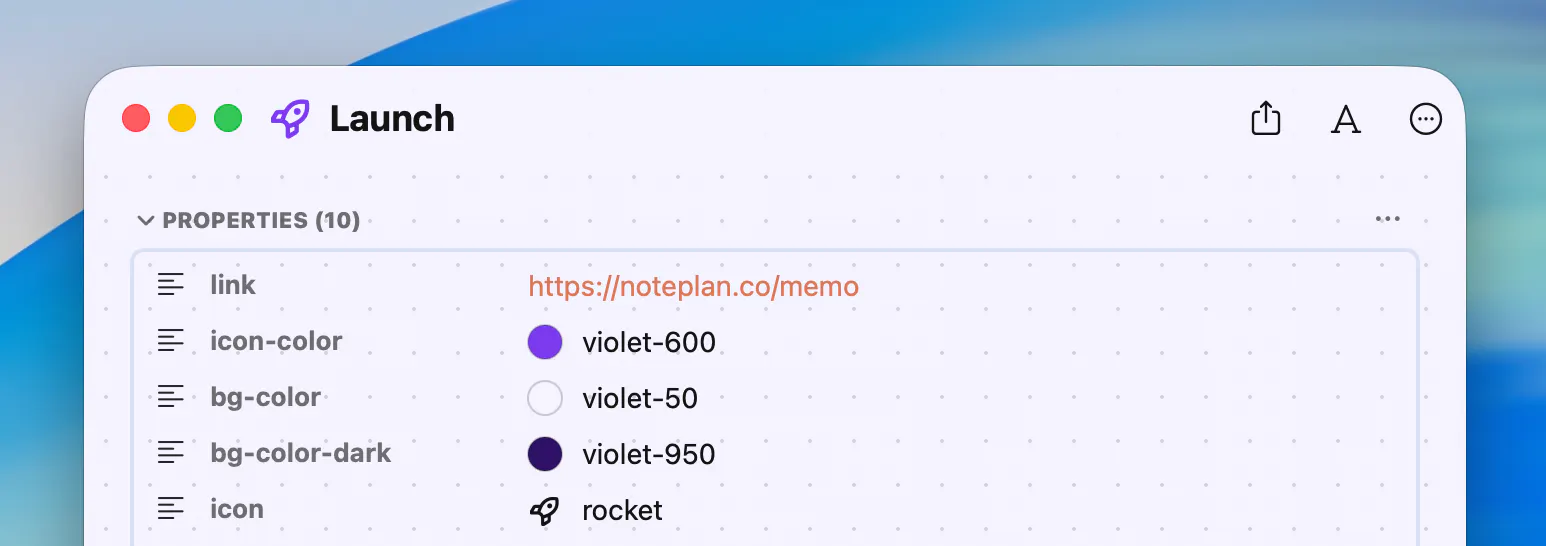
Links in property fields are now clickable: URLs, wiki links, and markdown links.
Plugin API

For plugin developers, the Reminders work extends to the API, plus a couple of fixes that make plugins more reliable:

  • Reminders can be created, read, and updated without a due date, and a new .priority field matches Apple Reminders (a new externalID field was added to get a stable Reminders ID across devices)
  • description in plugin.json is now optional — commands without it were silently dropped, which broke triggers like onOpen
  • onOpen now fires for calendar notes, and more Apple URL schemes are whitelisted (Reminders, Calendar, Messages, Shortcuts, Notes, Maps)
  • Logging has been fixed and improved.

Fixes & Improvements

And the usual round of fixes and smaller improvements:

  • Memo AI import now works on macOS
  • The share sheet lets you edit the title when creating a new note, and the keyboard no longer covers the form (iOS)
  • The note menu has a new "Update" button that renames the file to match the note's title (Mac)
  • Cmd+K now converts a selected wiki link into an alias link (Mac)
  • Custom transcription hosts (Groq, local Whisper) work again, and failures show a real error instead of failing silently
  • Fixed auto-inserted templates landing on the previous day's note after a timezone change
  • Fixed [[note|alias]] including the alias in the filename when creating the note
  • Fixed background Shortcuts pulling the NotePlan window to the front, and disabled "Note" menu items when the sidebar has focus (Mac)
  • Fixed Markdown export of shared-space notes — content and attachments (Mac)
  • Fixed the collapsed Plugins section in the sidebar re-expanding on every click (Mac)
  • Fixed a crash opening an event from a folder view on macOS 26
  • PDF printing: tables render correctly, wide images fit the page, and a loading indicator was added (Mac)
  • Fixed several freezes and hangs — heavily folded notes with time blocks, startup delays on large libraries, and a permanent freeze from stale time-block ranges; on iOS, also opening notes and adding a note in a folder view

---

Enjoying NotePlan? A quick review on the App Store helps support independent development.